

What it adds
Load it
1
Open the home screen
The button sits on the setup checklist, which shows until your first five setup steps are done.
2
Click Load sample factory data
Read the confirmation, which lists what will be added, and choose Load sample data. It can be loaded once per workspace.
3
Start with the two best screens
Open BI & Analytics → Lot Traceability and follow lot
STEEL-2026-001 from the supplier’s receipt to the customer. Then open Production Targets to see the target of 50 split into what was made, what is still in production, what quality rejected and the machine hours lost.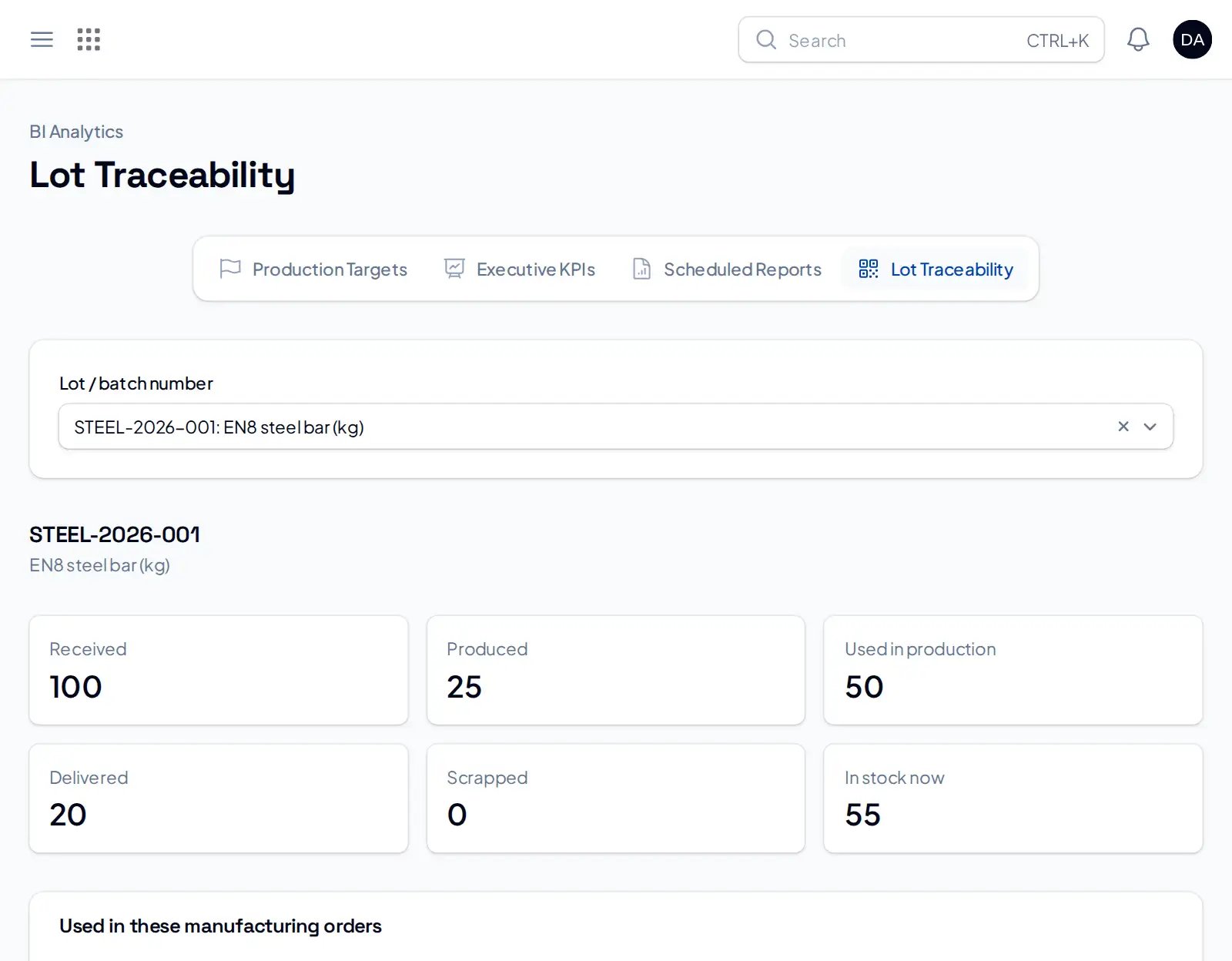
Lot traceability for the sample steel lot.
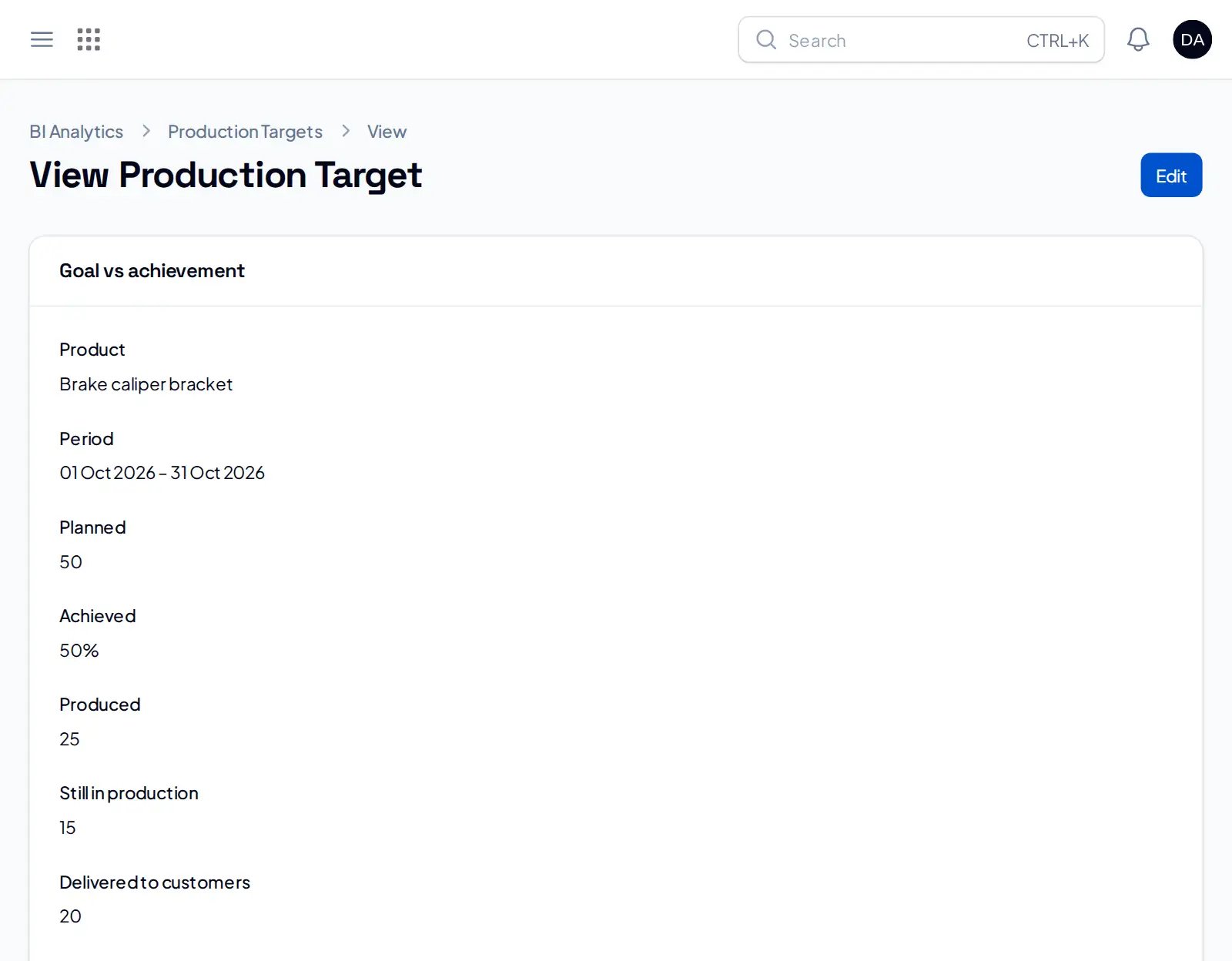
The missed production target, split by reason.
If you do not see the button
The sample factory touches purchase, inventory, manufacturing, sales, quality and reports, so it is offered only where all of those are available. If the button is not on your setup checklist, ask ARUKZ support to switch on manufacturing, quality and BI for your workspace, or to load the sample for you. The button is also hidden once the sample is loaded.